
File Uploading – Keep Documents Connected to Your Tasks
Sanotask allows users to attach important files directly to tasks, ensuring that all relevant information stays organized in one place. This makes it easier to access documents, images, or reports exactly when you need them while working on a task.
By keeping files connected to tasks, Sanotask helps users maintain better organization and improves collaboration when working on projects.
How to Upload Files
Uploading files to a task is quick and simple.
- Click the aqua-colored ball icon associated with the task.
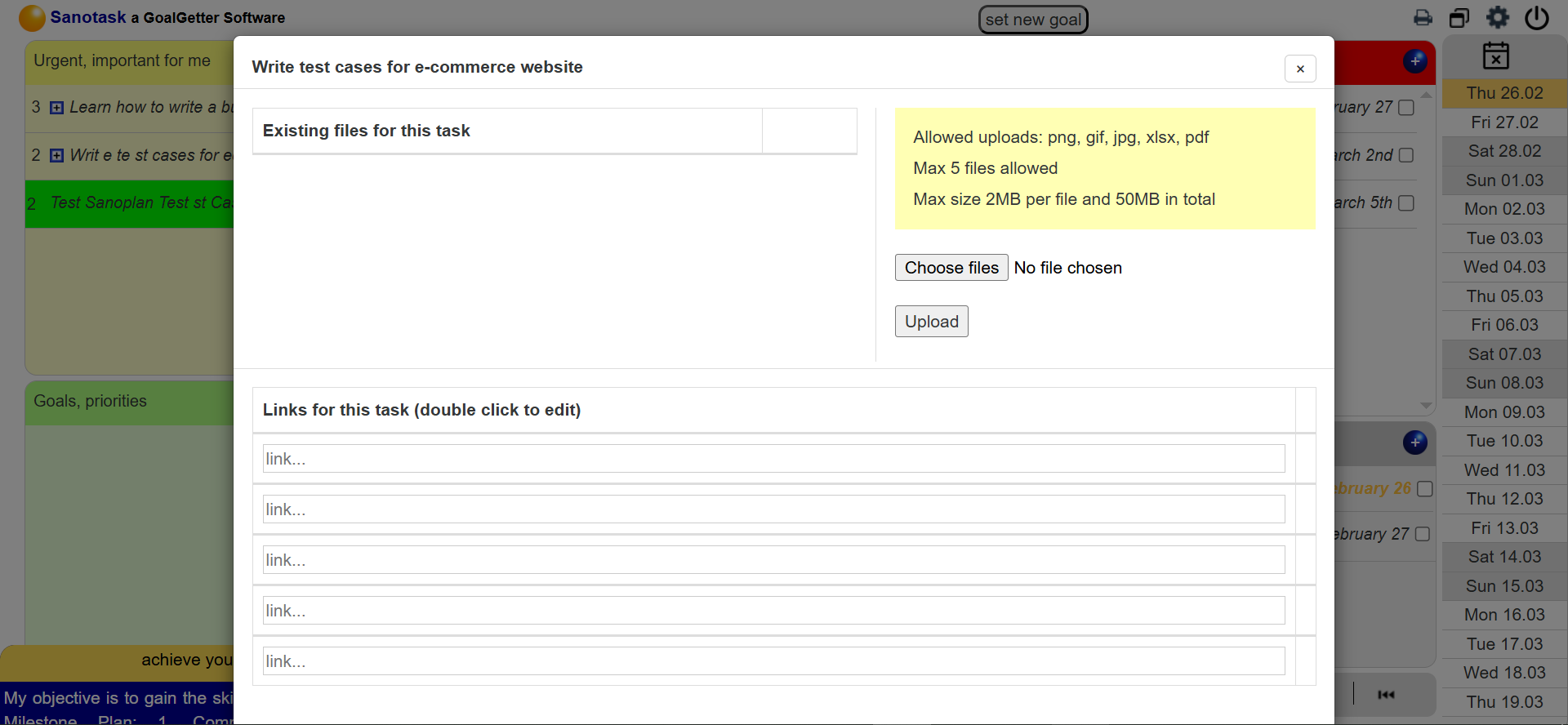
- The file upload window will open.
- Select the files from your computer and upload them.
Once uploaded, the files become linked to that specific task for easy access.
Supported File Types
Sanotask supports several commonly used file formats including:
- PNG, JPG, GIF – Image files
- XLSX – Spreadsheet files
- PDF – Document files
Upload Limits
To keep the system fast and efficient, Sanotask applies the following upload limits:
- Maximum 5 files per task
- Maximum 2MB per file
- Total storage limit of 50MB
These limits ensure smooth performance while still allowing users to attach essential documents to their tasks.
Accessing Uploaded Files
After uploading, files remain connected to the task and can be accessed at any time by clicking the aqua ball icon.
This allows you to quickly view or download the attached files without leaving the dashboard.